Showing posts with label GMAIL TRICKS. Show all posts

Friday, December 30, 2011

Add More Security To Your Google Account Using 2-Step Verification

Hi friends!! Today I'm telling about how you can add more security to your Google account using 2-step verification. 2-step verification is the best way for securing your Google account even if your password is stolen. You can't login to your account unless you have the verification code. Using it, you have to required both password & verification code (Receive on your mobile via SMS) for accessing your Gmail, Orkut services. You must be aware about security provided by Google.
  • Login to your Google account.
  • Open this link https://www.google.com/accounts/SmsAuthConfig
  • Click on Start setup.

    Start Setup
  • Now Set up your phone: Choose appropriate option (me chose Text message (SMS) or voice call under Landline or mobile phone).
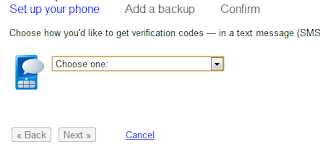
    Choose Options
  • Choose your country & Enter your mobile number.
  • Choose the option Send codes by: SMS text message or Voice call (I prefer to SMS text message).
  • Click on Send code under Let's the test phone.
  • You will receive a code via text if you chose SMS text message.
  • Enter code in next field & click on Verify.

    Test The Phone
  • Click on Next.
Your phone is now configured to receive verification codes. Now make backup in the case if you lost your phone or is unavailable.
  • Click on Next.
  • Print Backup verification codes or save it.

    Backup Verification Codes
    Remember: Each backup verification code can be use only once for verification & keep these codes secret. Read the warning under backup verification codes carefully.
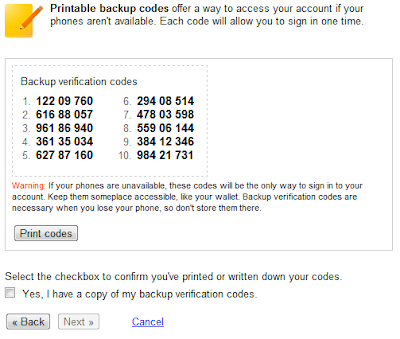
  • Check Yes, I have a copy of my backup verification codes & click on Next.
  • Now add another phone number that belongs to you or a trusted friend or family member.
  • Follow the steps as described above for sending code & optional testing.
  • Click on Next.
  • Click on Turn on 2-step verification

    Turn On 2-Step Verification
  • That's all.
When you will sign in to your Google account using user id & password, it will ask for verification code send to your phone. You must require verification code for accessing your account.

Verify
If you didn't receive code, then you can use another ways for getting verification code as shown below.

Choose Another Method To Get A Verification Code

Gmail Shortcut Key "?"


Use Gmail As Drive In Computer

So you can use Gmail as any other drive in your computer.

When you drag and drop a file to the drive, it sends an email to your Gmail account with the file as attachment.

Just Download Gmail Drive Shell Extension From Here.

Send Emails From Gmail At Specific Time With Boomerang

You can send emails at specific time in Gmail using Boomerang Firefox Add on. Just install Boomerang From Here.
It's whole procedure is given here.

After installing, you can see the Boomerang-Outbox left side below Inbox, Sent mails.

Sign Out From Gmail Remotely

Sometimes users do login from any unfamiliar computer/cyber cafe & forget to log out or any computer failure occurs. You must not bother about it as you can log out from all other computers without using that computer again. Follow these steps: Open you gmail account and go to bottom of the page ,there you will see something as shown below.

Sign Out From Gmail Remotely
Now click on “Details” which shows you a pop-up having details about your last sessions.Click on “Sign out all other sessions” will sign out of gmail at all other places.

Gmail Plus (+) Trick

Gmail Plus (+) Trick
Today I'm going to tell you about one more Gmail trick, Gmail Plus trick.

This trick will show you how to use mutiple Gmails for one account. Like you have id exmaple@gmail.com, you can use it as multiple Gmals. I will explain you how!!

Give your id as example+hack@gmail.com to your friend for sending any document. When your friend will send mail to this address, it will come to your inbox (example@gmail.com). Reason behind it is that Gmail ignores everything which comes after +.  dot have no meaning. You can try any ID like example+any@gmail.com, example+abc@gmail.com, Google will send it to example@gmail.com. Now where you can take benefit of it?

You can easily check who is sending spams to your email.  If you have to register to any site with your email exmaple@gmail.com, then register with example+hiaac@gmail.com. If you receive spam with this email, then you can easily find from where the spam mails are coming. In the same way you can register with multiple ids for multiple sites.